

The laptop battery is one of the most important parts of any portable computer. It lets you work away from outlets, keeps your project alive during power outages, and gives you flexibility that desktop computers cannot match. But like everything else, laptop batteries don’t last forever. Over time, they wear down, hold less charge, and sometimes fail entirely.
Many people do not realize that a failing battery does not necessarily mean the whole laptop is going to stop working. Almost all laptops allow for laptop battery replacement at some point. The process and difficulty vary widely depending on model and manufacturer. Some older computers have batteries that pop right out with a latch, while many modern ultrathin systems require careful disassembly to access the internal battery. Understanding how and when to replace a battery can save money, extend device life, and keep productivity running smoothly.
Why Laptop Battery Life Matters
Battery life is one of the first things people notice when they use a laptop. If a device only lasts a few minutes unplugged, it feels almost broken right out of the box. As batteries age, they lose their ability to hold a charge and will drain faster than expected. This can be frustrating when you need to work on the go or away from a power outlet.
Top laptop manufacturers have been pushing battery life further each year through hardware and software improvements. Recent advances in display technology, like adaptive refresh panels that shift down to as low as 1 Hz when the screen is static, have helped extend runtime significantly. Some new laptops are now achieving nearly a full day of use on a single charge thanks to these and other power-saving techniques.
These improvements are great, but even the best batteries eventually wear out. Once your laptop battery no longer holds a reasonable charge, it can seriously limit how and where you use your device. At that point, you may need to consider a replacement so your laptop can keep up with your needs.

What Causes Laptop Battery Wear
Laptop batteries are built from lithium‑ion or lithium‑polymer cells that slowly degrade over time. These cells lose capacity each time they are charged and discharged. A typical battery might last a few years under normal usage before it starts to show significant signs of wear.
Many things can speed up battery wear. Frequent deep discharges, using the laptop in very hot conditions, and constantly keeping the battery at full charge can all shorten its life. Running demanding apps or games that pull a lot of power will also make the battery cycle more often, which speeds up capacity loss.
Most battery health tools will show how much capacity remains compared to when the laptop was new. When a battery can only hold a fraction of its original charge, it’s a strong sign it may soon need replacement. While minor wear is normal, other issues like swelling or rapid shutdowns are signs of more serious failure that should be addressed right away.
Signs It’s Time For Laptop Battery Replacement
Recognizing when a battery needs replacing helps avoid surprises and costly repairs later on. A few common signs include:
Rapid Battery Drain
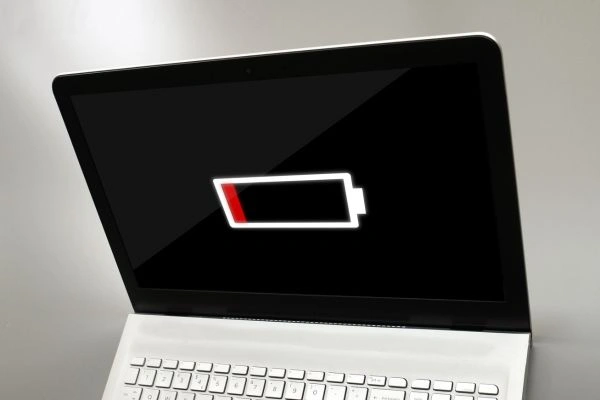
When your laptop loses charge much faster than it used to, even after a full charge, that often points to wear; charging habits and settings can affect this, but when rapid drain persists, it likely means the battery has reached the end of its useful life.
Unexpected Shutdowns
If the laptop suddenly shuts off even when battery indicators show power remaining, the battery may not be delivering stable voltage. Sometimes this can be a calibration issue, but repeated sudden shutdowns are a clear sign of battery degradation.
No Charge Recognition
In some cases, the laptop may not recognize the battery at all. This can look like the battery icon missing from the system tray or the device only powering up when plugged in. This situation means the battery needs attention or replacement.
Physical Changes
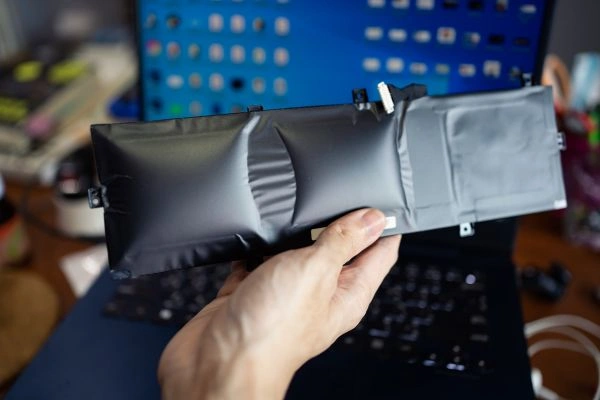
A visibly swollen battery is a serious safety risk. Swelling often pushes against the laptop case and can be felt as a bulge under the keyboard. If you see this, stop using the battery immediately and get a safe replacement. While rare, swelling can damage other internal parts if ignored.
How To Check If Your Laptop Battery Is Replaceable
Not all laptops make it easy to replace the battery, but almost all batteries can eventually be replaced one way or another. The first step is figuring out whether your laptop has a removable battery or an internal unit.
Older laptops often have a battery compartment on the bottom that can be popped open with a latch or a couple of screws. These models make laptop battery replacement straightforward and quick. Modern thin laptops usually have internal batteries that are not accessible without removing the bottom panel and screws.
To check if your battery is replaceable:
- Look at your laptop’s manual or spec sheet for notes about battery serviceability.
- If there is a quick-release tab on the bottom, it is likely user‑removable.
- If not, search for your model and “battery replacement” online to see repair guides or videos.
Many manufacturers’ support pages and forums also tell you whether the battery is user-replaceable or needs professional service. Some repair guides will even show the step‑by‑step process for that specific laptop model.
How To Choose A Replacement Battery
Finding the right replacement battery is critical. Batteries are not universal, so choosing one with the correct specifications and safety features ensures proper operation and avoids damage or hazards.
Match Model And Voltage
The replacement battery must match your laptop’s model and voltage rating exactly. Even if a physical replacement fits, mismatched voltage can damage the laptop or fail to charge correctly. Most replacement guides recommend verifying part numbers against your laptop’s original battery label or support documentation.
OEM Vs. Third‑Party Batteries
Original equipment manufacturer (OEM) batteries are made by the laptop maker or their certified partners. These are often the best choice for compatibility and safety. Good quality third‑party batteries can also be suitable if they come from trusted brands and have proper safety certifications such as CE, UL, or RoHS.
Safety Features
Laptop batteries carry significant energy and can pose fire risks if they are poorly made. Look for replacements that include overcharge protection, short‑circuit prevention, and thermal cutoffs. Certified batteries give better assurance that safety standards were followed during manufacturing.
How To Replace A Laptop Battery Safely
The process of swapping out a battery varies from simple to more involved. Here are clear steps to safely perform a laptop battery replacement if the battery is accessible and the user is comfortable with basic tools:
Step 1: Gather Tools and Safety Gear
Before you start, have a set of small screwdrivers, a plastic pry tool, and an antistatic wrist strap, if possible. Turn off the laptop and disconnect it from all power sources. Working on a clean, flat surface helps keep screws and parts organized.
Step 2: Open The Laptop (If Needed)
If your laptop has an easily removable battery, skip this and follow the quick latches. For internal batteries, remove the bottom cover by unscrewing the screws and gently prying it open. Keep track of the screws and note where each one came from.
Step 3: Disconnect The Old Battery
Once the battery is visible, locate its connection to the motherboard. This will usually be a cable or connector that can be gently unplugged. Be careful not to tug or damage other parts inside.
Step 4: Install The New Battery
Place the new battery in the same orientation as the old one, reconnect the cable, and secure it in place. Replace the bottom cover and screws. Once assembled, plug in the laptop and charge the battery fully before first use.
Step 5: Calibrate The New Battery
After installation, some laptops benefit from a full charge and discharge cycle to calibrate the battery meter. This means charging it to 100 percent, then letting it run down before charging again. Calibration helps your system report battery health and life more accurately.
When Professional Help Makes Sense
Not all battery replacements are DIY‑friendly. Models with soldered batteries or very compact internal designs are best left to professionals. A certified technician can handle delicate disassembly and ensure safe installation without damaging fragile parts.
Electronics repair shops and manufacturer service centers can replace batteries with original parts or certified replacements. Some retailers also offer battery replacement services, though eligibility may vary by laptop brand and model. For example, many technicians can replace batteries in well‑supported brands, but ultra‑thin laptops from certain makers may not be covered because certified parts are still unavailable.
Tips To Extend Battery Life
Even after replacement, good habits can help your new battery last longer:
1. Avoid full deep discharges frequently.
2. Keep your laptop and vents clean to reduce heat stress.
3. Adjust power settings to save energy when possible.
4. Use genuine or certified chargers and adapters.
Simple habits like lowering screen brightness or closing unnecessary apps can make noticeable differences in real‑world battery life and longevity.
Frequently Asked Questions
How To Replace Laptop Battery?
To replace a laptop battery, first power down and unplug your device. For removable batteries, unlock the latch and slide the battery out. For internal batteries, remove the bottom panel, disconnect the battery cable from the motherboard, and install the new battery in the same orientation. Always charge fully before first use.
How Long Should A Laptop Battery Last?
Laptop batteries typically last 2 to 4 years or 300–500 full charge cycles. Actual life depends on usage, charging habits, and heat exposure. Proper care, like avoiding extreme temperatures and not keeping the battery at 100 percent all the time, can extend its lifespan.
Why Does My Laptop Battery Drain So Fast
Rapid battery drain can be caused by high-performance apps, outdated software, background processes, or a degraded battery. Reducing screen brightness, closing unnecessary programs, and updating system software often improve battery life.
How To Remove Battery From HP Laptop?
For HP laptops with removable batteries, turn off the device, flip it over, and unlock the battery latches to slide it out. For models with internal batteries, unscrew the bottom panel, disconnect the battery cable, and carefully lift the battery out. Always follow HP’s service manual for your specific model.
How To Find HP Laptop Battery Model Number?
Most batteries have their model number clearly printed on the unit. For internal batteries, remove the battery or check the HP support sticker on the laptop. You can also use HP’s online support tools by entering your laptop’s serial number to identify the correct replacement battery.
Final Thoughts On Laptop Battery Replacement
A laptop battery can be replaced, and doing so can breathe new life into an older device. Whether the battery is removable or internal, knowing how to assess its condition, choose a reliable replacement, and replace it safely empowers users to make smarter decisions about their devices. Done right, laptop battery replacement keeps laptops productive and portable without unnecessary expense.
If your battery wear is affecting performance or reliability, replacing it is usually easier and more cost-effective than buying a new laptop. With the right replacement battery and careful installation, most laptops can continue to serve for years beyond their original battery life.